 Scoped SEO
 Add to Chrome
Locate on Page and quick actions
Point at a heading, link, image or issue and see it outlined on the page, and use the quick actions button for the jobs you repeat.
Locate on Page
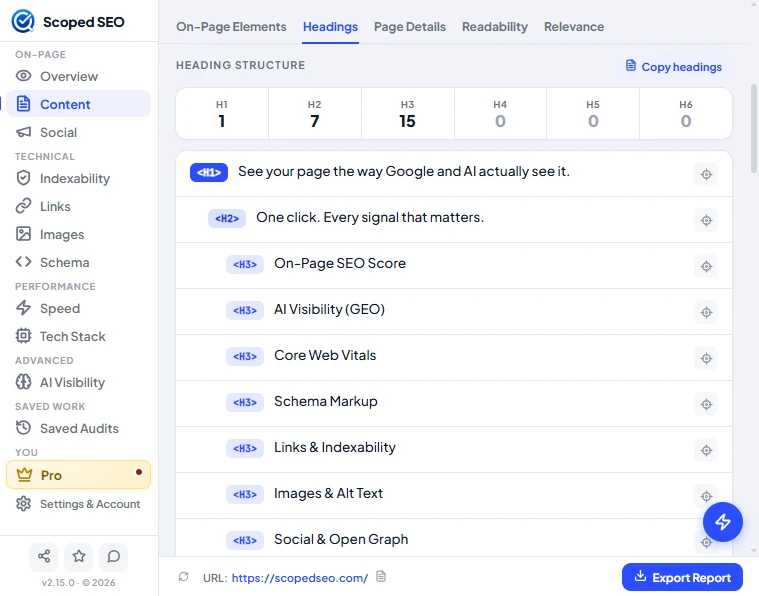

Click the small target button on a row, or the row itself outside its links and buttons. The page scrolls to the element and outlines it with a small label such as the heading level, the link type with "n of N with this URL", or the image name. Click again, press the x on the label, or use Clear highlight in the quick actions to remove it.
Where it works
- Content, Headings
- Images (All, Alt Missing, SEO Issues)
- Links (Internal, External, Image Links)
- Four Overview issues: multiple H1 tags, skipped heading levels, images missing alt text and oversized images
- The primary H1 in Title vs H1, and the LCP element in Speed
Issues that involve several elements show Locate (N) with previous and next buttons. Next skips elements hidden on the page and tells you so. Issues that aren't about one element, such as the title, meta tags, canonical, schema or speed, deliberately have no Locate button.
The popup shrinks while you look
A toolbar popup would cover the very thing you're trying to see. After a successful Locate, the popup collapses to a small bar showing the tag (H2, Image, Link), its name, previous and next buttons, a clear button and an open button. Hover the bar for a moment or click it and the full window returns. The outline stays on the page. The window also returns when you clear the outline, the page navigates or you re-scan. You can turn this off in Preferences.
If an element can't be located
Scoped SEO explains why in plain words: the element is hidden, it changed since the scan, it's a lazy image with no size yet, it can't be reached, you're looking at a saved snapshot, or it's off-screen (for example in a slider). Elements in off-screen sliders get an outline and a note rather than a forced slide change.
What it does to your page
Nothing permanent. The outline and label are drawn in a single overlay element attached to the page and removed when you clear it. No attribute, class or style is ever added to your page's own elements. It works under strict Content Security Policies.
Quick actions button

The round lightning button above the footer opens a fan of actions on a quarter-circle arc. Hover or focus an action to see its label. The menu closes when you press the button again, press Esc, click elsewhere or change tab.
| Action | What it does |
|---|---|
| Save audit | Saves the current audit to this device. The action turns green with a tick after saving, a small badge shows on the closed button, and pressing it opens Saved Audits. |
| Explain this tab | Opens a short plain-language explanation of the tab you're on. |
| Saved Audits | Jumps to your saved audits. |
| Re-scan page | Runs the audit again on the current page. |
| Clear highlight | Appears only while something is outlined on the page. |
- Save and Re-scan aren't offered inside a saved snapshot, and both are disabled during a scan. Save is also disabled while title or description edits are only a preview.
- The button is hidden on Settings & Account, Saved Audits and Pro.
- It works from the keyboard: arrow keys, Home, End and Esc. Focus returns to the main button afterwards.
- Turn it off with Show Quick Actions Button in Preferences. When it's off, a Save current page audit button appears at the top of Saved Audits instead.