 Scoped SEO
 Add to Chrome
Exports and limits
PDF, Word and CSV reports that cover every tab, screenshots of any card, and the Free and Pro limits that apply.
Export Report
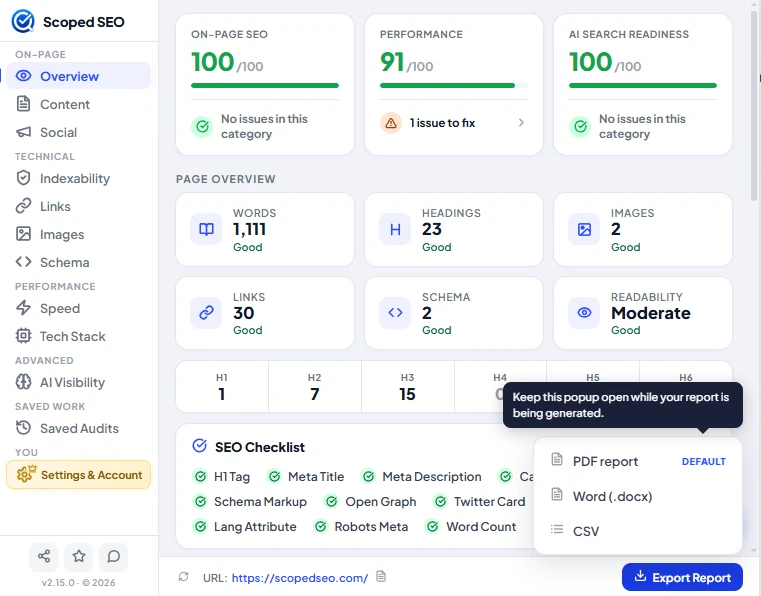
Press Export Report in the footer bar and choose PDF, DOCX or CSV. A note in the menu tells you to keep the popup open while the report is generated. Closing it can interrupt the export.
What a report contains
Every tab and metric the extension can show:
- Scan details: report type, timestamps, extension version, window size, page overview and the number of passed checks
- On-page elements (title, description, canonical, viewport, language, Open Graph, Twitter Card)
- Content analysis: word count, reading level and the heading structure with skipped levels flagged
- Social tags with values
- Indexability and crawling: robots, canonical, hreflang, sitemaps,
llms.txt, robots.txt rules and a request log - Links: summary, full link table, anchor text distribution and link-attribute breakdown
- Images: summary, full image table, missing-alt and oversized findings
- Structured data: types found, validation errors with paths and severity, and a methodology note
- Speed and Core Web Vitals: TTFB, load time, LCP with element and phases, CLS, INP, a resource table and diagnostics
- Tech Stack
- AI Search Readiness: crawlers, findings and limitations
- Methodology and limitations
All three formats are built from the same data, so they agree with each other. Row limits keep reports readable: PDF shows up to 30 rows per table (40 for Links and Images), DOCX up to 120 (150 for Links and Images), and CSV is never capped.
Per-tab exports
- Links: Internal, External or All as CSV.
- Images: Export Alt Missing as CSV.
- Schema: Export Schema as
schema.json. - Saved Audits: export any saved audit as CSV, DOCX or PDF.
Screenshots
The camera icon on a card (title, description, social previews and others) copies or saves a screenshot of that card or section. On Free, screenshots carry a Scoped SEO watermark strip. On Pro, they're clean, and can carry your own logo.
Free and Pro limits
| Free | Pro | |
|---|---|---|
| Report exports | 2 per day, any format | Unlimited |
| Branding on reports | Scoped SEO | Your name and logo |
| Screenshots | Watermarked | White-label |
| Saved audits | Up to 10 | Unlimited |
How the daily limit works
- A free export of any format uses one of your two. The export menu shows "X of 2 exports remaining today", turning amber at zero.
- The count is kept in your browser's local storage and resets at midnight UTC. Because it's local, it's per browser profile.
- Only a successful free export is counted.
- At the limit, a dialog explains the cap and offers the Pro plans. Everything else, including viewing the audit, keeps working.
Branding your reports (Pro)
Set a brand name and logo in Report Branding. They appear in the PDF and DOCX header, the cover's "Prepared by" line and the footer, in the CSV footer, and on screenshots. Free accounts never apply stored branding at export time.
Set a default export format in Preferences to change the order and tagging of the export menu. It doesn't export anything by itself.