 Scoped SEO
 Add to Chrome
Images
Alt text in five states, oversized images judged against how they actually display, and a details panel for every image.

Tiles and actions
Four tiles show Total, Has Alt, Alt Missing and Oversized. Export Alt Missing downloads a CSV of images that need alt text. Copy All Alt Text copies the alt text of every image. Sub-tabs: All Images, Alt Missing and SEO Issues, with a search box.
Hover a thumbnail for an enlarged preview. Each row has a target button to locate the image on the page.
Alt text states
Alt text is sorted into five states, not just present or absent:
| State | Meaning |
|---|---|
| Missing | No alt attribute at all. |
| Empty | An empty alt attribute, which is valid for decorative images. |
| Descriptive | Alt text that reads like a description. |
| Problematic | Alt text with a detected issue (see below). |
| Undetermined | Scoped SEO can't tell, for example when the image has no readable context. |
Flags for problematic alt text: whitespace only, generic words such as "image" or "photo 3", filename-like text, repeated words, the same alt text on several different images, and an image link with no accessible name.
Oversized images
An older approach flagged any image whose file was 2.5 times its displayed size, which wrongly flagged sharp images for high-density screens and ignored srcset. Version 2.11 judges the file against the pixels the image needs at its displayed size on your screen, and takes srcset and sizes into account. Expect fewer false Oversized flags than before.
Details panel
Press Details on a row for the address, alt text, displayed size, file pixels, needed pixels, the size verdict, file size, format, loading attributes, srcset candidates (the selected one is marked), sizes, width and height attributes, findings, and the scan context (viewport, pixel density and method version). Buttons: Copy Image URL, Open in New Tab (http and https only) and Locate on Page.
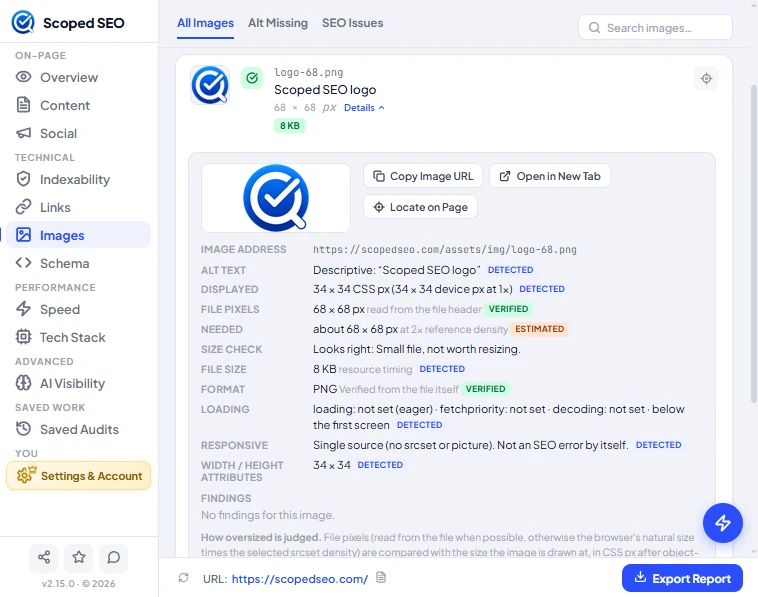
Every fact in the panel carries a small badge saying how it was obtained. Detected means it was read from the page, Verified means it was confirmed from the image file itself (its pixel size or format), and Estimated means it was calculated, such as the pixels the image needs at your screen's density.
Export format
Export Alt Missing writes Source Page URL, Image URL, Filename, Alt Attribute State, Existing Alt and Issue. Cells are safe for spreadsheets, including against formula injection. Reports gain "Image alt text" and "Image sizes" lines.
Saved audits store the scan context along with each image's facts, so reopening one never uses today's window or screen. Audits saved before version 2.11 show Not Recorded, and the Oversized tile shows a dash.